"Can you check why this search isn't working?"
I looked at the query. Perfect syntax. Correct index. Should work. But it returned zero results.
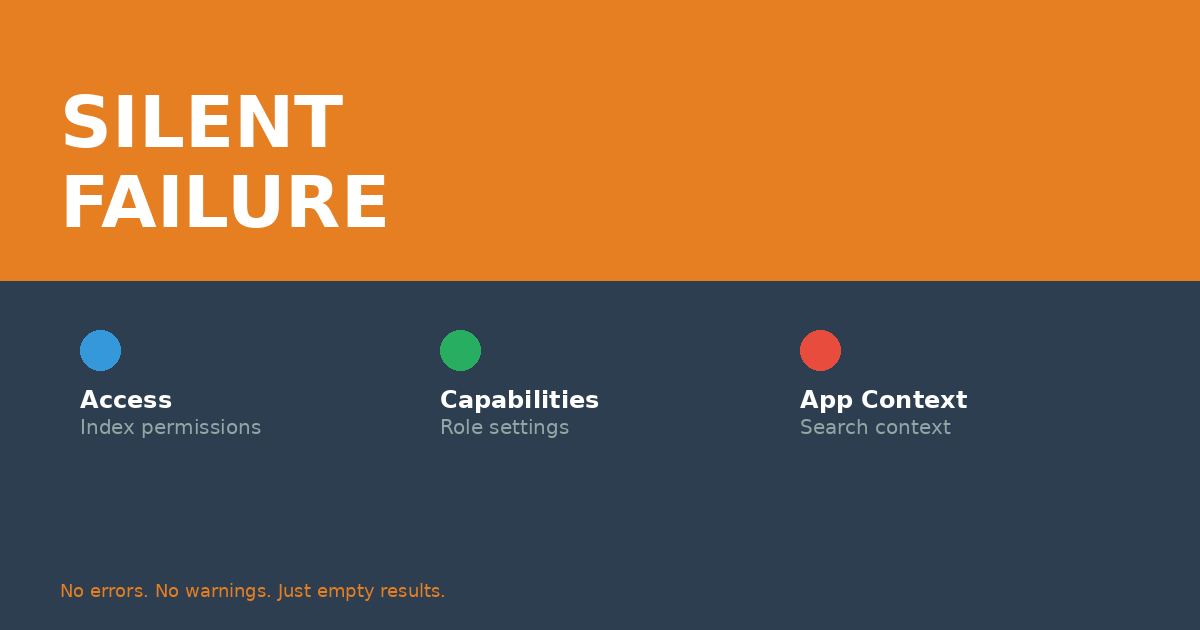
The problem? Permissions. The #1 invisible issue in enterprise Splunk.
Why Permissions Break Silently
Splunk won't tell you "Access Denied" when you search an index you don't have permission to see. It just returns nothing. No error. No warning. Just... empty results.
This creates a maddening troubleshooting experience:
- Your query syntax is perfect
- The index exists
- Data is flowing
- But you see nothing
I've watched engineers spend hours troubleshooting "broken" searches, only to discover they simply didn't have index permissions.
The Three Permission Layers
Splunk permissions operate on three levels, and all three must align for data to be visible:
1. Index Permissions
The user's role must include the index in its srchIndexesAllowed setting. Even if data exists, users without index access see nothing.
2. Role Capabilities
Different roles have different search capabilities. The can_delete capability, for example, determines whether you can use the delete command—regardless of whether your search works.
3. App Context
Searches run in app context. If a saved search lives in a private app, users without app permissions can't see it—even if they have the right role.
Real Case: The Vanishing Security Logs
A security analyst contacted me: "All Windows security logs disappeared from Splunk this morning."
I checked. The data was there. The indexers were receiving it. The forwarders were sending it. But from her perspective, it had vanished.
Root cause? Someone had modified the analyst role's srchIndexesAllowed parameter and accidentally removed the Windows security index.
The data never disappeared. She just lost permission to see it.
How to Diagnose Permission Issues
Quick test for index access:
| rest /services/authorization/roles | search title="[role_name]" | table title srchIndexesAllowed
Check role capabilities:
| rest /services/authorization/roles/[role_name] | table capabilities
Identify which role a user has:
| rest /services/authentication/users/[username] | table title roles
The LDAP Multiplier
In Active Directory-integrated environments, permissions get even more complex. User roles are assigned based on AD group membership, which means:
- AD group changes immediately affect Splunk access
- Troubleshooting requires checking both Splunk and AD
- Documentation of role/group mappings becomes critical
I maintain a spreadsheet mapping every AD group to its Splunk role and index permissions. When permission issues arise, I can trace the full chain in minutes instead of hours.
Prevention: Document Everything
Here's what I document for every Splunk deployment:
- Role definitions and their index permissions
- AD group to Splunk role mappings
- Custom capability assignments
- App-level permission models
When someone reports "data isn't showing up," I can quickly verify whether it's a permissions issue or an actual data flow problem.
The Takeaway
If your search returns zero results and you're certain the data exists, check permissions FIRST. It's almost always faster than troubleshooting the search itself.
Have you been burned by silent permission failures? Share your story below.